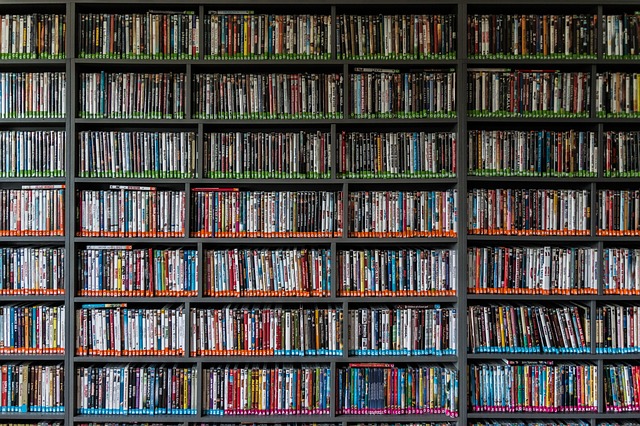
 Last month I decided it was time to organize my ever expanding DVD collection. It’s not that I was buying DVDs every time I went shopping, but rather I was finding numerous DVD binders and cases throughout my house on a consistent basis. They were literally strewn everywhere – in drawers, boxes, shelves, everywhere.
The time had come to consolidate – but what good would it be to have massive binders of hundreds of DVDs and not be able to find them or easily enjoy them? It was time to go digital!
I established two goals in organizing and digitizing my DVD (and blu-ray) collection:
- The movies needed to be cataloged in a central place so that I, or others, could quickly ascertain if I owned the title and where the title was physically stored.
- The quality of the digitized versions needed to be as good as the original disc, and needed to be easily accessible on a variety of devices (Apple TV, iPad, iPhone, etc.).
After weeks of research, I landed on the solutions. Below is an overview of all the hardware and software components I selected. So far I’ve been extremely impressed with all of them. Remember to check Amazon’s pricing as everything was cheaper there.
This piece of computer hardware is the cornerstone of the digital experience. It’s a network attached storage device (NAS) meaning it’s a small computer, with 4 hard drive bays, that sits connected to the wireless router with the sole purpose of serving up data (in this case ripped DVDs). Along with the Synology unit, I purchased two 8 gig Western Digital Red branded drives (two because it gives redundancy if one of the drives fail).
The best part of this computer system was the setup (both installation of the hardware and setup of the software) which was incredibly easy. Best of all, it can be used for additional purposes such as a backup storage unit for my Macs utilizing their built-in Time Machine functionality. And – so far – it’s incredibly reliable with 100% up-time.
Plex is special software that runs on the Synology NAS and provides “media server” capabilities – in essence, the ability to stream movies, TV shows, home videos, and even photos to any other device – all automatically without having to have specialized movie files for each type of device. The free version should work for most people, but the Plex Pass (a paid version) allows you to do a lot more (such as automatic syncing with your iPad). The Plex software is surprisingly easy to use and, if you get stuck during setup, there’s a wealth of informative instructions on their website.
MakeMKV is software used to rip DVDs onto computers. It handles all the decryption automatically. And yes, it is legal to make backups of your physical discs. This is free software to download (Mac and PC), but ripping blu-ray discs requires a small fee.
Because I’m using Plex as my media server, only the single main title file can be used – so be sure to check only the box of the main title before copying to your NAS. You should also set the language in preferences so that it only copies the appropriate audio and subtitle tracks which saves space.
If you’re using Plex Media Server, you simply have to use FileBot. Plex requires that each main title file be in its own directory, and both the directory and title file have to be named in a specific format so that Plex can download the cover image and movie details from IMDB. This simple app (Mac and PC) renames the files for you, though you will sometimes have to Google search the year of the movie just to make sure it’s correct.
My Movies Pro is an iPhone/iPad, Mac, Android, and Windows app that provides a robust movie cataloging capability. It does require you to buy it (the free version only allows 50 movies) and each platform has to be bought separately. But once you add movies (either via scanning barcodes or searching manually), it will add all the movie’s details from IMDB and allows you to specify additional data (such as the disc’s location and where it’s stored digitally).